Features
Everything Easyday Booth does today, from the guest's first tap to the photo on their phone. Every feature here is tested on our own booth equipment.
Two shooting modes
Automatic: countdown, shot, a short preview with an ✕ to retake that shot, then on to the next one until the frame is full.
Photographer: you shoot with the camera's own shutter button. Each new shot confirms the one before. Tap ✕ on screen to retake. After the last shot the booth moves on by itself.
- Pressing the shutter on the start screen wakes the booth
- Live view is mirrored like a mirror; the photos themselves are not
- 1 to 4 shots per frame, several frames per event
- Every timer (countdowns, previews, auto-confirm, idle reset) is a setting, not hard-coded
Bring your own frame designs
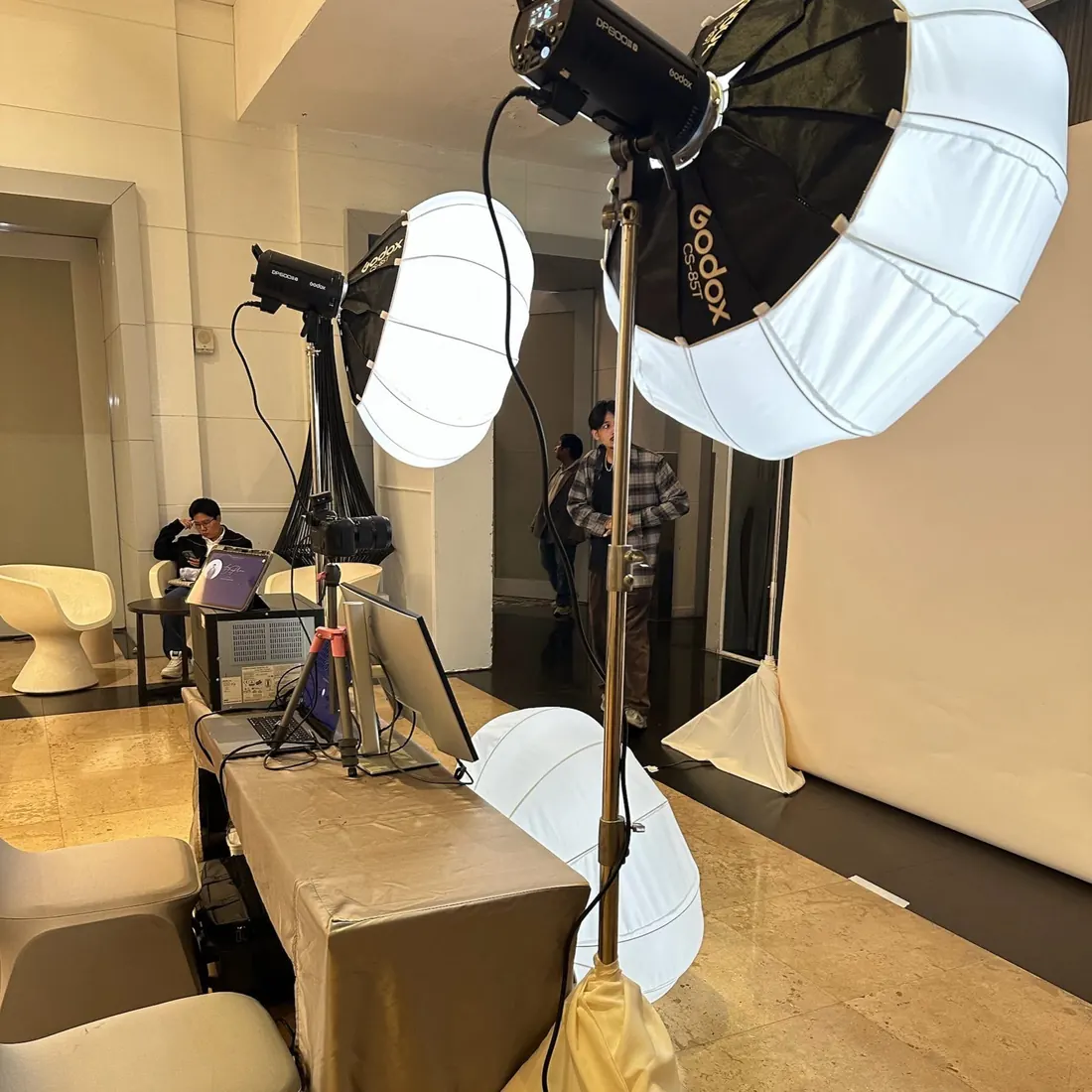
Design frames in Photoshop or Canva as a PNG with transparent windows. Easyday Booth finds the windows for you, in order from top to bottom.
- Drag, resize and reorder photo windows; use one shot in several windows
- Photo under the frame, or on top of it
- 4x6 frames, and 2x6 strips printed two-up on one 4x6 sheet and cut
- Warns you when a frame has an empty window
- Frames belong to each event, and sync to the web editor
Filters and AI frames, set per frame
The live view and the preview use the same look as the final print, so guests see what they'll get.
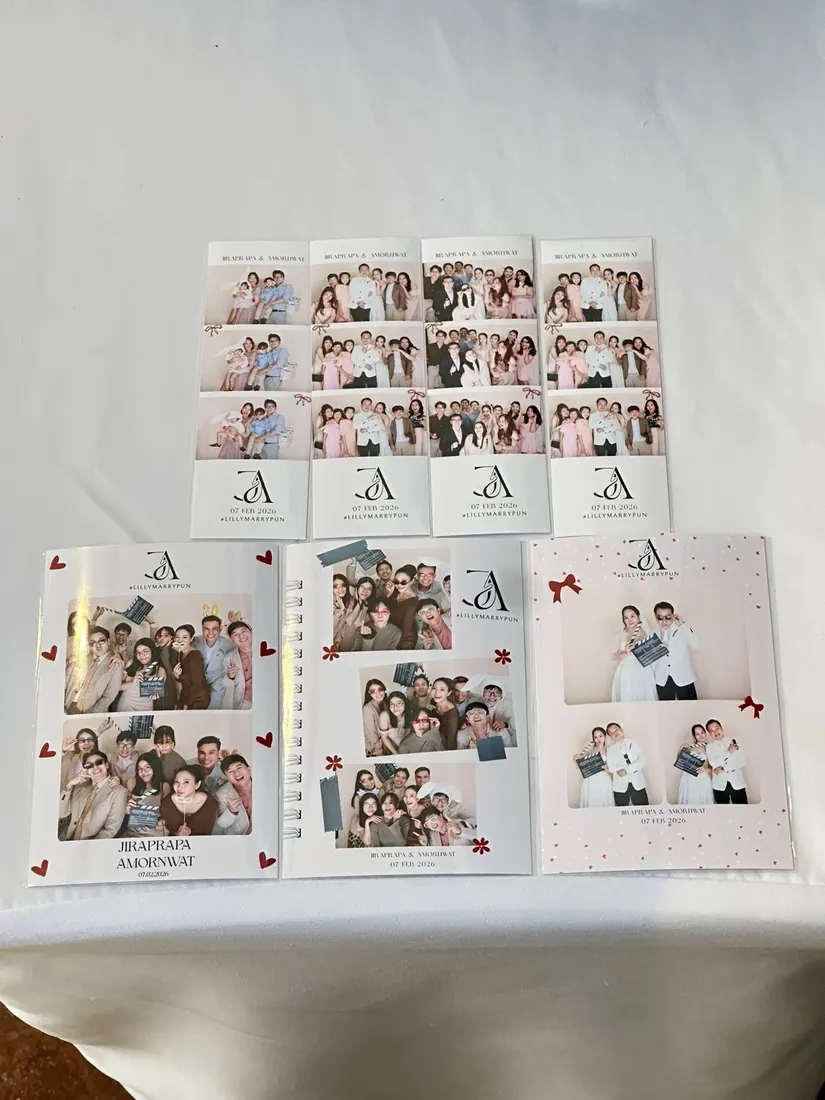
- 9 colour looks: black & white, high-contrast B&W, sepia, warm film, cool film, vintage, soft pastel, vivid, cinema
- Skin smoothing in three strengths, applied to skin only
- AI frames: each shot restyled into a portrait inside your frame
- Preview every AI style on a real photo before you pick one
- Fast or best-quality AI, with a per-event image cap
- Slow or no internet: the booth uses the real photo instead of making guests wait
AI frames need an internet connection and AI credits. Original photos are never changed.
QR codes that work before the upload does
Each session's link is made before the photos are taken, so the QR code shows the moment a guest confirms. If they scan before the upload finishes, their page says the photos are on the way and loads them by itself.
- Guest page with the framed photo, the GIF and every original shot used
- Save all (share sheet on phones), LINE, WhatsApp, Facebook, copy link
- Event album: one QR code for every photo of the event
- Upload queue that survives restarts and lost connections
- Photos deleted from the cloud automatically after 30 days (configurable), and the date is shown to guests
- Delete a session on a guest's request, from the cloud too
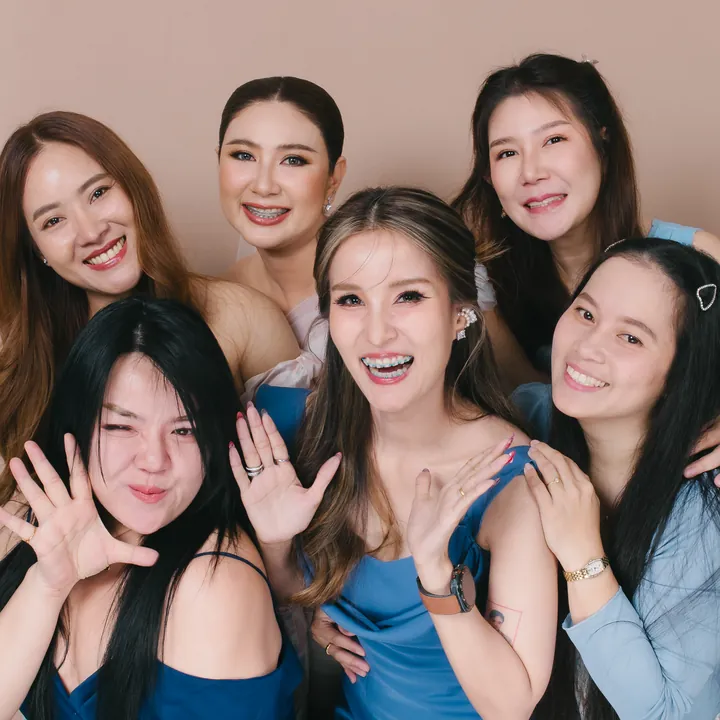
- Guests choose how many prints, up to a limit you set
- 4x6 and 2x6 strips, cut in half by the printer
- Print queue kept on disk: nothing lost when the app or Mac restarts
- Cover open, out of paper or ribbon: warning on the staff screen, jobs wait
- Sharpening applied to photos only, never to your frame artwork
- Print position and margin calibration inside the app
- Reprints from the booth gallery or iPad, with per-session and per-event caps
- Print statistics per event and per month
A guest screen that fits the event
- Themes plus your own accent colour, with automatic contrast so text stays readable
- Start screen with your event artwork, or live view
- Guest screens in English, Thai, Russian, Chinese, Hindi and Arabic (right-to-left), and guests can switch
- Booth gallery: guests browse earlier sessions and scan their QR again
- Booth opening hours shown on the start screen
- Countdown and shutter sounds
Staff tools
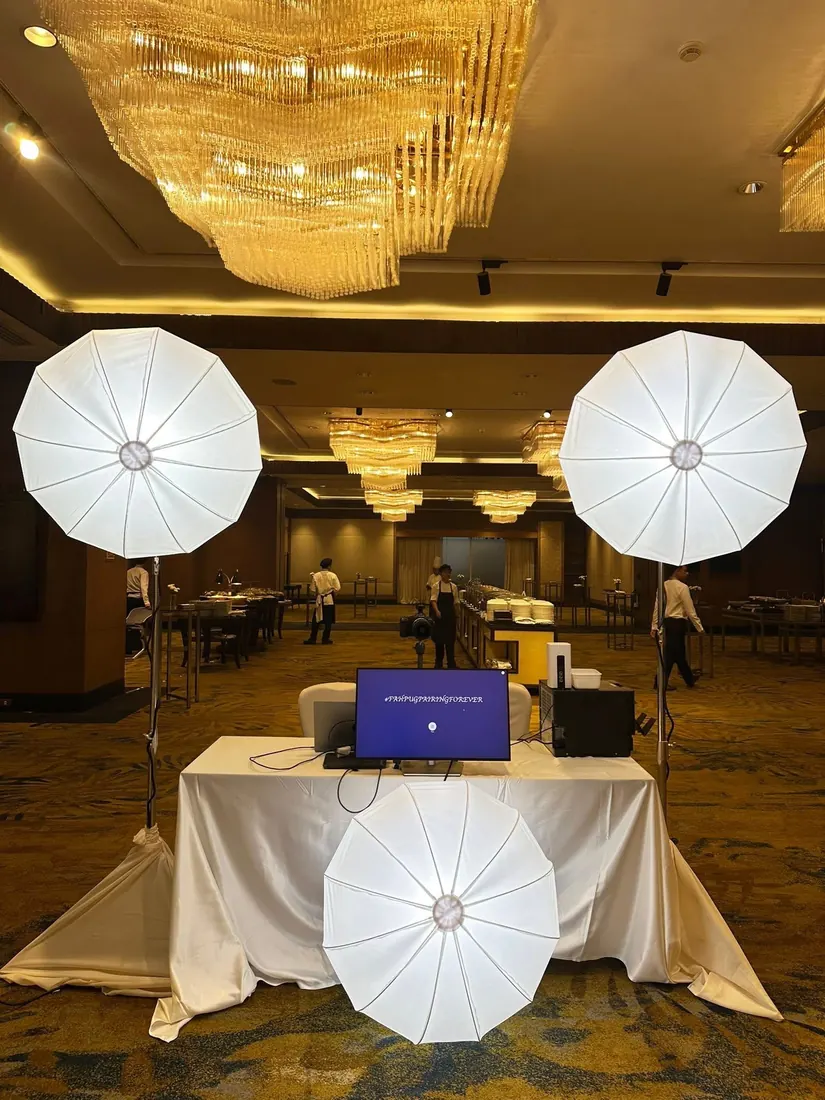
- Guest screen on an external monitor, staff screen on the Mac
- Status lights for camera, printer, internet speed and disk
- Events set up ahead of time, duplicated, archived
- Event settings synced to Easyday Cloud and editable from any browser
- Lock the booth with a PIN; staff menu hidden from guests
- Test shot and test print pages before the event starts
- Copies to Google Drive during or after the event (through the Google Drive app for Mac)
- Upload queue with per-session retry